Test Tap4Beer free in a few minutes
Set up the basics for your bar, open a table, and send test orders before using the solution in real operations.
Self-service: download the Bar app, create your account, configure the basics, and validate the flow before production use.
First goal
test order
Free mode
up to 10 orders/day
Help channels
WhatsApp and email
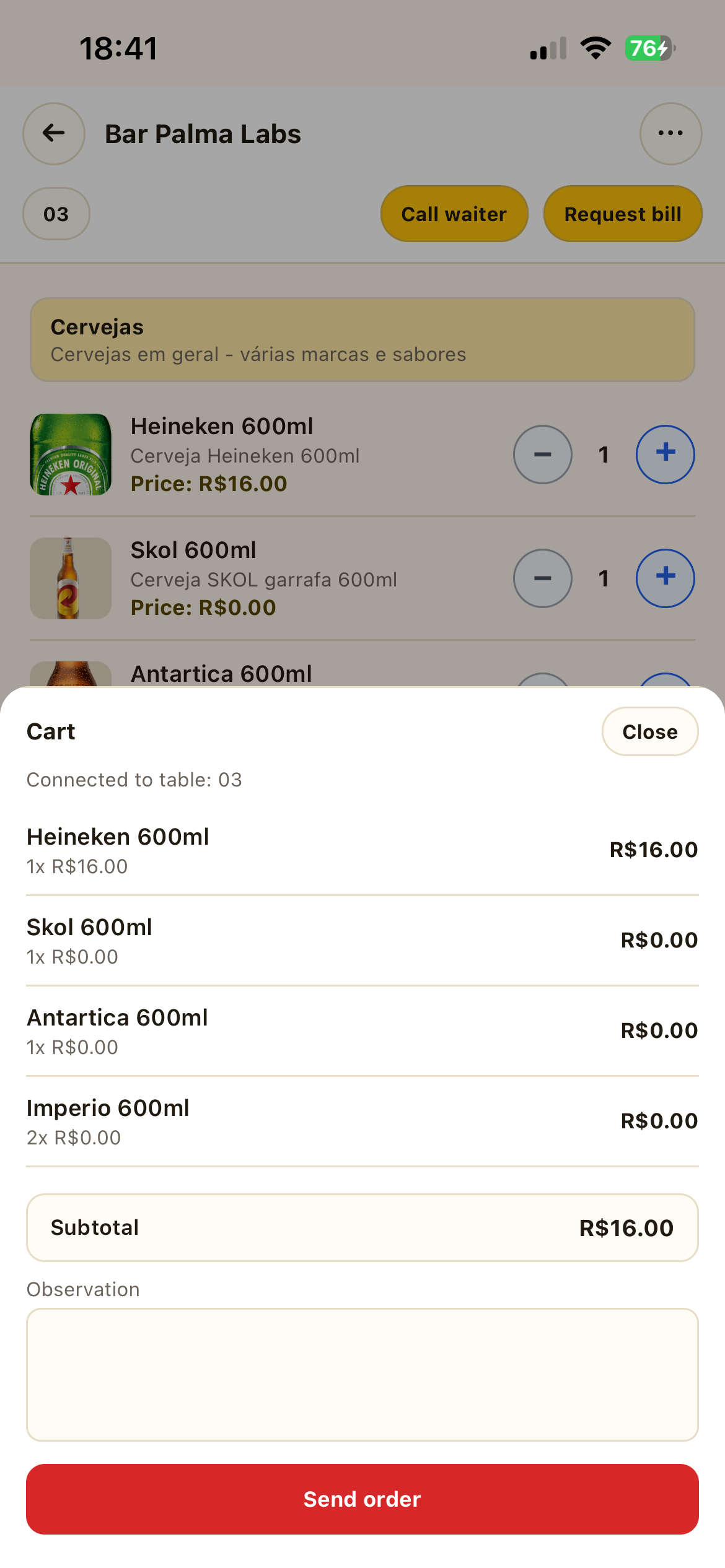
Customer order
Test the customer experience by connecting to a table and sending an order.
Bar Orders
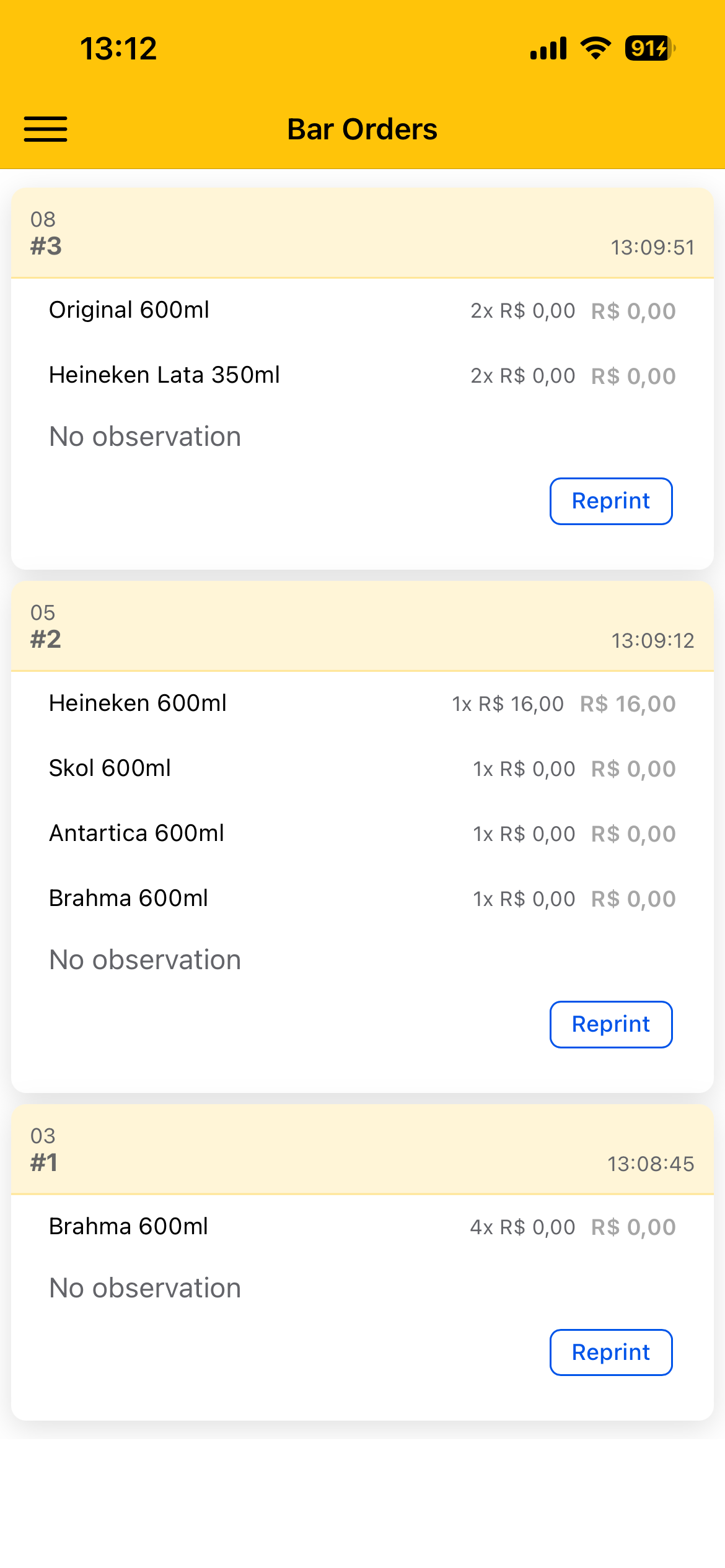
Check whether staff and customer orders reach the same flow.
30-second video: see how the customer orders from the table and how staff also place orders.
See the flow before setting it up.
The video will sit here to show a customer ordering from the table and staff placing orders into the same operational flow.
The customer connects to the table in the app and sends an order.
Staff can also place orders for an open table.
Operations receive everything organized by table in Bar Orders.
The test uses the same screens as the operation.
Use the screenshots as a quick reference: menu, tables, bar orders, and customer ordering.
Bar menu
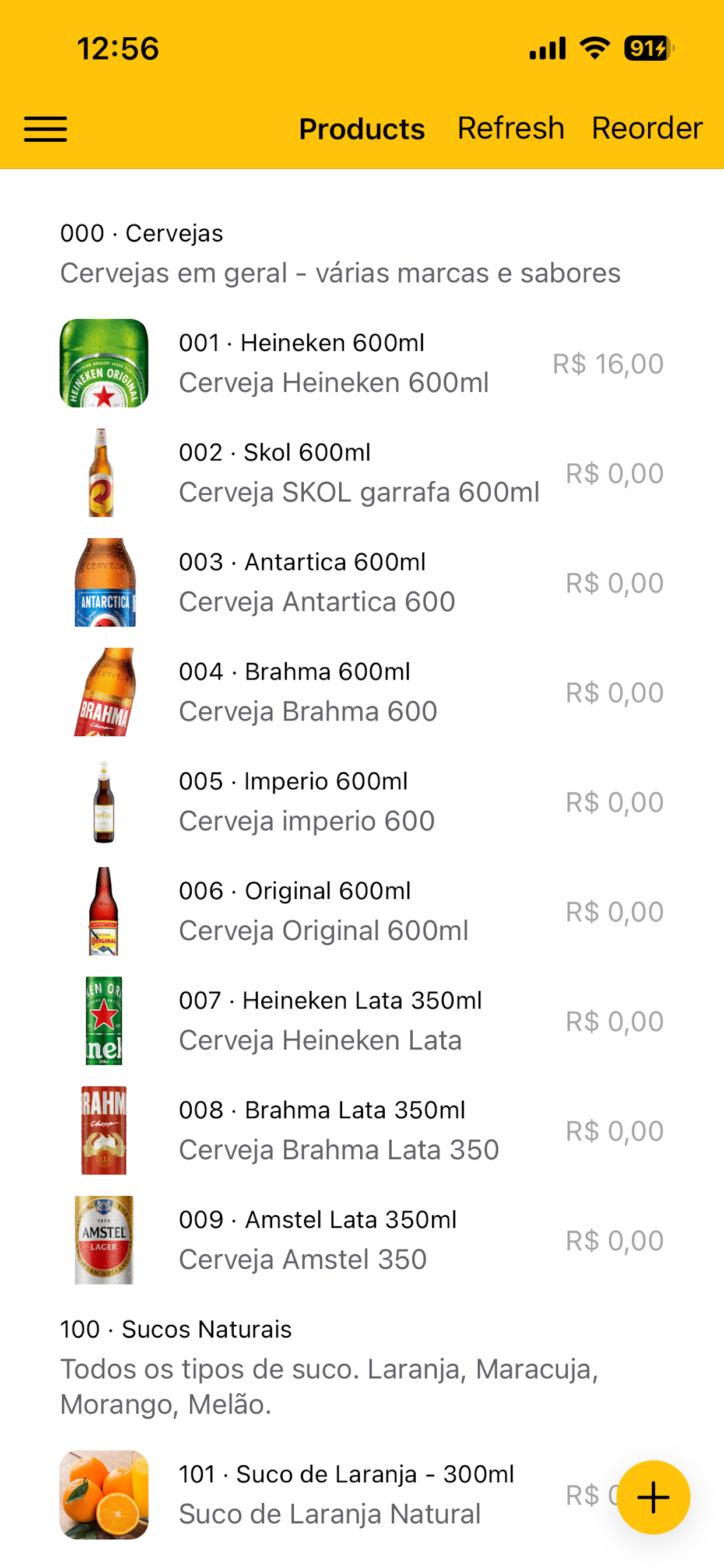
Set up products, categories, prices, and photos for the test.
Table management
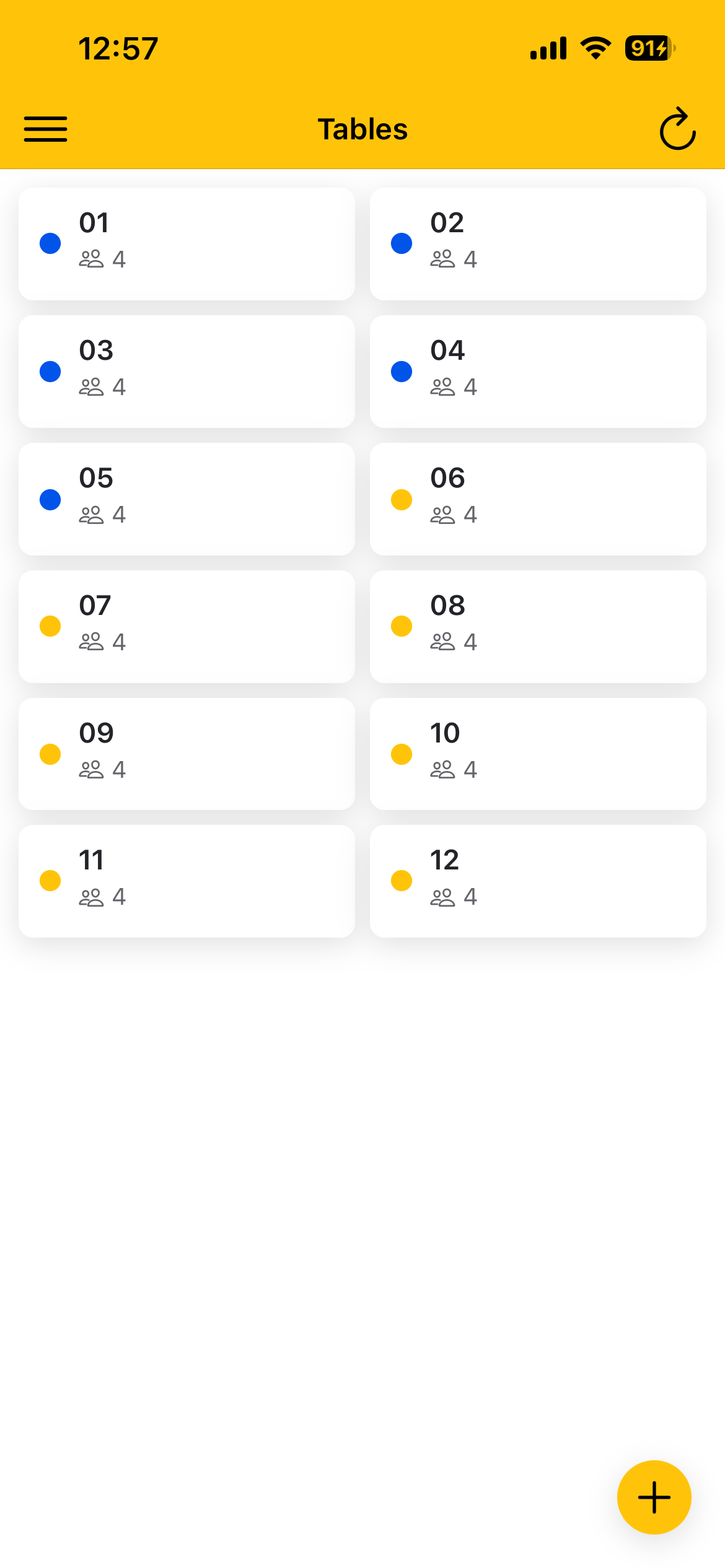
Open a table, validate status, and prepare customer connection.
Bar Orders
Check whether staff and customer orders reach the same flow.
Customer order
Test the customer experience by connecting to a table and sending an order.
Complete the full path before using it with real customers.
The goal is to validate the essential flow: configure, open a table, send orders, and check operations.

Download and enter the Bar app
Install the app, create your account or log in, and configure the establishment linked to the account.
Set up menu and tables
Register categories, products, prices, photos, and the tables that will be used in the test.
Open a table
Use table management to open a service session and prepare the QR Code or manual connection.
Place an order as staff
Add items through the staff flow, select the open table, and confirm the order appears in Bar Orders.
Place an order as a customer
Connect to the table through the Client app, build the cart, and send a test order.
Configure the printer, if any
Select the Bluetooth printer in settings and run a print test before operations.
Confirm the operation is ready for a real table.
Do not skip this step. It reduces surprises during service and shows whether the flow fits your routine.
The staff order appears in Bar Orders.
The customer order appears on the correct table.
Items, prices, quantities, and notes are correct.
Bluetooth printing works, when used.
The table can be closed correctly at the end of the test.
Test free first. Subscribe only if it makes sense.
The free version lets you validate the operation with a daily order limit. If it makes sense for your bar, subscribe inside the app to keep using it.
In the free test
Product and menu registration.
Table registration and opening.
Waiter and customer orders.
Up to 10 orders per day for validation.
To keep using it
Subscribe inside the Bar app.
Current offer: R$ 5 for 7 days.
Validate the subscription before depending on the app during peak hours.
Manage billing and cancellation through the store when applicable.
You can cancel the subscription at any time through the store or applicable billing channel.
Test thoroughly before making it definitive.
Tap4Beer supports your operation, but it must be validated in the establishment's real environment.
The solution depends on internet access to work.
Test thoroughly before making Tap4Beer a definitive solution in the establishment.
The solution depends on cloud services and may stop if any of those services become unavailable.
If you have questions, use contact as support.
If you have questions during the test, send a message by WhatsApp or email. Use contact as support; the first step is to install and try it.
Start with the complete test.
Install the Bar app, configure the minimum needed, and validate orders as staff and as a customer.